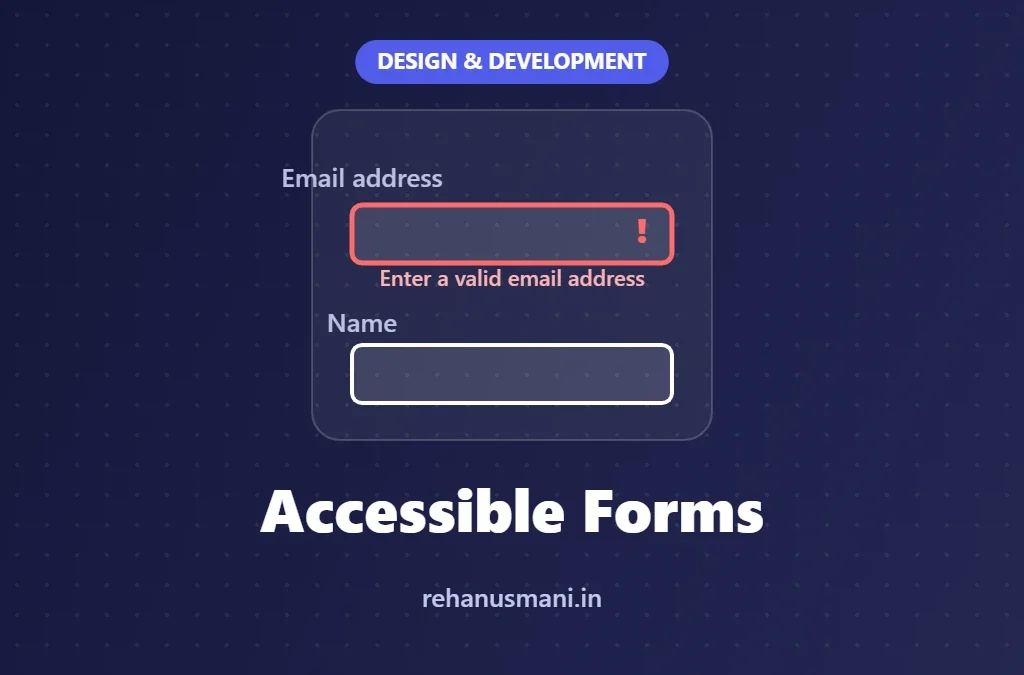

Forms are where accessibility stops being theoretical. A blog post with a heading out of order is annoying; a checkout form that a screen reader user cannot complete is a lost customer, and under the European Accessibility Act it can be a legal problem too.
In audits, forms are consistently one of the areas with the most serious findings. The good news is that almost every form failure comes from a short list of patterns, and every one of them has a well-understood fix. This guide walks through them in the order a user meets them: labels, instructions, grouping, input, errors and submission.
Key takeaways
- Every field needs a visible label that is programmatically connected to the input. Placeholders are not labels.
- Put instructions and format requirements before the field, not only in an error message after it.
- Group related controls, such as radio buttons, with
fieldsetandlegend. - Error messages must say what went wrong and how to fix it, in text, next to the field.
- Validate on submit (or on blur, gently), move focus to the first error, and never clear what the user typed.
1. Labels: the foundation of every accessible form
A label does two jobs. Visually, it tells sighted users what to type. Programmatically, it gives the input an accessible name, which is what a screen reader announces when focus lands on the field and what voice control users say to select it.
The most robust way to do both is a native label element tied to the input with for and id:
<label for="email">Email address</label>
<input id="email" name="email" type="email" autocomplete="email">
Clicking the label also moves focus to the input, which gives users with limited dexterity a bigger target. That is a small detail that makes a real difference.
Why placeholders are not labels
Using placeholder text instead of a label is one of the most common failures I find. It looks clean in a design file, but it fails in practice:
- The placeholder disappears as soon as the user starts typing, so anyone with short-term memory difficulties loses the instruction.
- Placeholder text is usually light grey and fails contrast requirements.
- Some assistive technology combinations do not announce placeholders reliably.
If you want the minimal look, use a visible label above the field and keep the placeholder for an example value, if you use one at all.
Label in name
WCAG 2.5.3 Label in Name requires the accessible name to contain the visible label text. If the visible label says “Search” but aria-label says “Find products in our catalogue”, a voice control user saying “click Search” may get nothing. The simplest rule: if there is a visible label, let it be the accessible name.
2. Instructions and required fields
Users need to know the rules before they start typing. WCAG 3.3.2 Labels or Instructions asks for labels or instructions when content requires user input.
Good practice:
- Mark required fields clearly. An asterisk is fine if you explain it at the top of the form (“Fields marked with an asterisk are required”). Add the
requiredattribute so assistive technology announces it too. - Put format hints before the field, and connect them with
aria-describedbyso they are announced with the label. - Don’t rely on colour or position alone. “Fields in red are required” fails anyone who cannot see red.
<label for="dob">Date of birth (required)</label>
<p id="dob-hint">For example, 27 03 1990</p>
<input id="dob" name="dob" inputmode="numeric" aria-describedby="dob-hint" required>
3. Grouping related controls
Radio buttons and checkboxes that belong together need a group label, otherwise a screen reader user hears “Yes, radio button, 1 of 2” with no idea what question they are answering. Use fieldset and legend:
<fieldset>
  <legend>Would you like email updates?</legend>
  <input type="radio" id="updates-yes" name="updates" value="yes">
  <label for="updates-yes">Yes</label>
  <input type="radio" id="updates-no" name="updates" value="no">
  <label for="updates-no">No</label>
</fieldset>
The same applies to groups of related text inputs, such as an address or a date split into day, month and year.
4. Help users enter data correctly
Several WCAG criteria are about reducing effort and mistakes before they happen:
| Technique | Why it helps | WCAG |
|---|---|---|
autocomplete attributes (name, email, tel, street-address) | Browsers and password managers can fill fields, which helps people with motor and cognitive disabilities | 1.3.5 Identify Input Purpose |
Correct type and inputmode | Shows the right keyboard on mobile (numbers, email) | Usability |
| Don’t ask for the same information twice | Saves effort and reduces errors | 3.3.7 Redundant Entry (2.2) |
| Allow paste in password and code fields | Lets people use password managers instead of memorising | 3.3.8 Accessible Authentication (2.2) |
| Generous, consistent target sizes | Easier to tap for people with tremor or on small screens | 2.5.8 Target Size (2.2) |
Two of these, Redundant Entry and Accessible Authentication, are new in WCAG 2.2 and are frequently missed. A login form that blocks paste, or a multi-step checkout that asks for the billing address again without offering “same as shipping”, fails them.
5. Error messages that actually help
When something goes wrong, users need three things: to know there is an error, to find it, and to understand how to fix it.
WCAG 3.3.1 Error Identification requires errors to be described in text. WCAG 3.3.3 Error Suggestion asks you to suggest a correction when you know one.
Compare these messages:
- Weak: “Invalid input.”
- Better: “Enter a valid email address.”
- Best: “Enter an email address in the format name@example.com.”
A tested pattern for an error state:
<label for="email">Email address</label>
<p id="email-error" class="error">
  <span class="visually-hidden">Error:</span>
  Enter an email address in the format name@example.com
</p>
<input id="email" name="email" type="email"
       aria-invalid="true" aria-describedby="email-error">
What this does:
aria-invalid="true"tells assistive technology the field is in an error state.aria-describedbymakes the screen reader read the error with the label.- The hidden “Error:” prefix makes the message clear for screen reader users, and an icon plus text (not colour alone) makes it clear visually.
Error summary for long forms
For forms with more than a few fields, add an error summary at the top after submission: a heading such as “There is a problem”, followed by a list of links to each field with an error. Move focus to the summary so screen reader users hear it immediately. This pattern, popularised by the UK government’s design system, is one of the most usable approaches available.
6. When to validate
Validation timing has a big effect on usability:
- Avoid validating on every keystroke. Announcing “invalid email” after the user types the first letter is noisy and stressful, especially with a screen reader.
- Validate on submit as the baseline. Then move focus to the error summary or the first invalid field.
- Inline validation on blur is fine if it is calm: show the message after the user leaves the field, and remove it as soon as the input is valid.
- Never clear the form on error. Re-typing everything is a huge barrier for people who type slowly or use switch devices.
For legal, financial or data-changing submissions, WCAG 3.3.4 Error Prevention asks that submissions be reversible, checked or confirmed. A review step before final submission covers this neatly.
7. Custom controls: proceed with caution
Custom dropdowns, date pickers and toggle switches are where many forms fall apart. Before building one, ask whether a native element would do: select, input type="date" and input type="checkbox" come with keyboard support and screen reader semantics for free.
If you do build a custom control, it must have a name, a role and a state (WCAG 4.1.2), full keyboard support, and visible focus. Test it with at least one screen reader before it goes near production. My guide to the first rule of ARIA covers the most common mistakes.
A quick form testing checklist
Run through this on any form before release:
- Tab through every field. Is the order logical, and can you always see where focus is?
- Click each label. Does focus move to its input?
- Turn on a screen reader and tab through. Is every field announced with its label, required state and hint?
- Submit the form empty. Are errors described in text, linked to fields and announced?
- Fix one error and resubmit. Is your other input still there?
- Zoom to 200% and 400%. Do labels and errors stay next to their fields?
- Try to paste into the password and code fields.
If you want a structured way to run screen reader checks, start with my screen reader testing guide for beginners.
Conclusion
Accessible forms are not about adding ARIA everywhere. They are about a few solid habits: visible labels, instructions before input, real grouping, helpful error messages and calm validation. Get these right and your forms will work better for everyone, including the many users who never tell you they struggled.
Further reading
- What Is Digital Accessibility? A Practical Guide to WCAG, POUR and Testing
- Keyboard Accessibility and Focus Management
- W3C WAI: Forms Tutorial
- W3C: Understanding 3.3.1 Error Identification