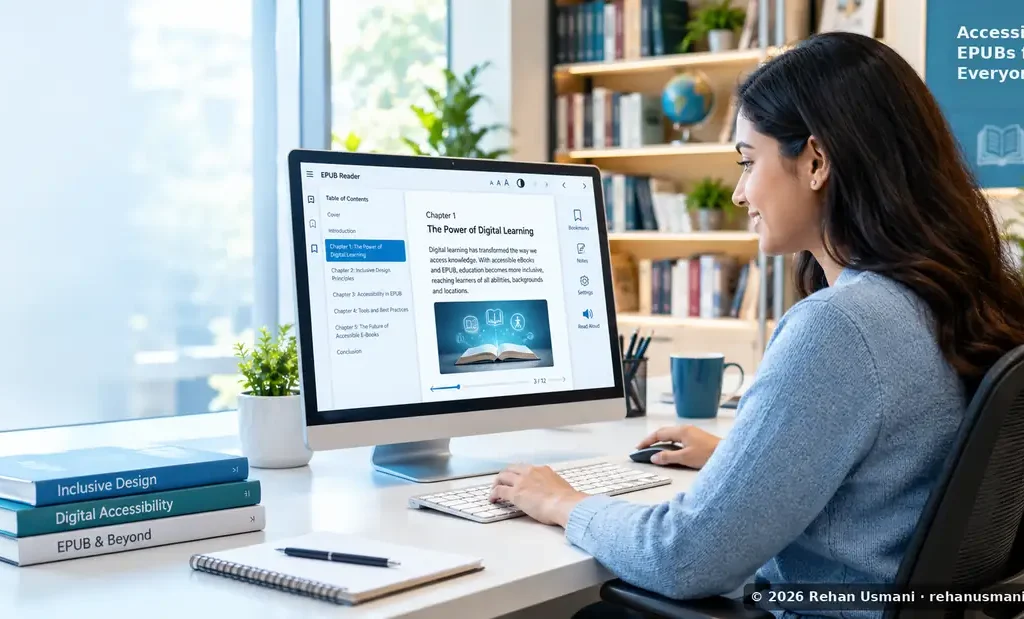

You have finished your e-book, exported the EPUB, and an automated checker says everything passed. Is the book accessible now? Not quite. A clean report is a great start, but it is only half of the job. In this post I explain how to test an EPUB for accessibility the right way: what automated tools can do, where they stop, how to test by hand, and which standards you need to meet.
What makes an EPUB accessible?
An EPUB is accessible when every reader can use it fully. That includes people who listen with a screen reader, read with a braille display, use read-aloud voices, or need bigger text and different colours.
The rules come from EPUB Accessibility 1.1, a W3C standard that builds on WCAG, the main web accessibility guidelines. In the European Union, the European Accessibility Act (EAA) has made accessibility a legal requirement for most e-books sold from 28 June 2025. Very small businesses are exempt.
Who depends on accessible e-books
EPUB is a great format for accessibility because text can reflow, be read aloud, and be adjusted by each reader. But that only works when the book is built well. Different readers need different things from the same file.
| Reader | How they read | What the book must offer |
|---|---|---|
| Blind readers | Screen reader or braille display | Good image descriptions, real headings, logical reading order, working table of contents |
| Low-vision readers | Large text, zoom, dark or high-contrast themes | Text that reflows, good contrast, no pictures of text, no locked fonts or colours |
| Readers with dyslexia | Read-aloud voices, special fonts, extra spacing | Real text, clear structure, styles the reader can change |
| Deaf or hard-of-hearing readers | Captions and transcripts | Captions for video, transcripts for audio |
| Readers with limited hand movement | Keyboard, switch or voice control | Links and controls that work without a mouse |
| Readers with cognitive disabilities | Read-aloud, simple navigation | Clear layout and easy-to-find chapters |
| Readers sensitive to flashing | Normal reading | No fast flashing, and any hazard listed in the metadata |
The same features also help older readers, people reading on a small phone screen, and anyone who likes to listen while travelling. Readers also need to know before they buy whether a book will work for them. That is why every EPUB must carry true accessibility metadata and a short accessibility summary, which stores and libraries show to readers.
Step 1: Run the automated checks
Start with tools. They are fast, consistent, and catch most technical mistakes before you spend time testing by hand. The standard tool is Ace by DAISY, which is free.
- Check the file with EPUBCheck first, to make sure it is built correctly.
- Open Ace by DAISY and drop in your EPUB, or run
ace -o report/ book.epubfrom the command line. The file must not have DRM, or Ace cannot open it. - Read the report. Problems are sorted as critical, serious, moderate and minor.
- Fix the problems, rebuild the EPUB, and test again until Ace reports nothing.
- Keep the report’s Images and Metadata lists. You will use them in manual testing.
What automated tools check
| Area | What the tool looks for | Tool |
|---|---|---|
| File structure | The EPUB is valid, with no broken links or bad code | EPUBCheck |
| Accessibility metadata | Access modes, features, hazards and a summary are present | Ace |
| Language | The book and each file declare their language | Ace |
| Page titles | Every content file has a title | Ace |
| Images | Every image has an alt attribute | Ace |
| Headings and tables | Headings are not empty; tables have header cells | Ace |
| Colour contrast | Text contrast is at least 4.5:1 | Ace |
| ARIA | Accessibility code is valid; no duplicate IDs | Ace |
| Navigation | A table of contents exists, plus a page list when the book has print page numbers | Ace |
| Links | Every link has readable text | Ace |
Free and paid tools
- Ace by DAISY desktop app (free): the main EPUB accessibility checker, for Windows, Mac and Linux.
- Ace by DAISY command line (free): the same checks for many books at once. Needs Node.js.
- EPUBCheck (free): checks that the file is valid. Run it first. Needs Java.
- pagina EPUB-Checker (free): a simple drag-and-drop app that runs EPUBCheck.
- Ace SMART (free account): guides the manual review, records pass or fail, and helps write metadata.
- Publica.la EPUB Accessibility Checker (free, online): upload one book and get an Ace-based report.
- FlightDeck by Firebrand (paid subscription): Ace plus best-practice and retailer checks, and online metadata editing.
Why automated tools are not enough
A tool can tell you that something is there. It cannot tell you whether it is right. Only some accessibility rules can be fully checked by a computer; many need a person.
- Alt text:
alt="photo1"passes the check, but it tells a blind reader nothing. - Reading order: the code can be valid while a side box is still read in the middle of a sentence.
- Headings: the tool sees headings, but not a chapter title marked at the wrong level.
- Metadata: the tool checks that claims exist, not that they are true.
- Navigation: a table of contents can pass while missing chapters.
- Real use: a tool never opens the book in a reading app, so it cannot tell how it sounds or how it looks with bigger text.
- Special content: maths, charts, audio, video and interactive parts need a human review.
Step 2: Test the book by hand
Manual testing means reading the book the way a disabled reader would: in real reading apps, with a screen reader, and with the display changed.
| Device | Reading app | Screen reader |
|---|---|---|
| Windows PC | Thorium Reader | NVDA (free), JAWS or Narrator |
| Mac | Apple Books or Thorium | VoiceOver |
| iPhone or iPad | Apple Books | VoiceOver |
| Android | Google Play Books | TalkBack |
My recommended test app: Thorium Reader
Thorium Reader is a free, open-source EPUB app for Windows, Mac and Linux, made by EDRLab. It is built with accessibility in mind: it works with screen readers, reads aloud with built-in voices, lets you change fonts, size, spacing and colour themes, and supports page navigation. My usual setup is Thorium with NVDA on Windows, then a second pass in Apple Books with VoiceOver, because every app shows books a little differently.
Manual testing steps
- Check the metadata. Open the
.opffile and confirm every accessibility statement is true. - Check the table of contents. Every chapter should be listed and land in the right place. Try “go to page” if the book has page numbers.
- Listen. Read the opening pages and one full chapter with a screen reader. Nothing should be skipped, repeated or out of order.
- Jump by headings. The levels should match the book: part, chapter, section.
- Review every image. Does the description explain what the reader needs here? Charts need a longer description.
- Check tables. The screen reader should announce row and column headers.
- Check links and notes. Footnotes should link there and back; link text should make sense alone.
- Check other languages. Foreign words should be pronounced correctly.
- Change the display. Enlarge text to 200% or more and switch fonts and themes. Nothing should be cut off.
- Check colour use. No information should depend on colour alone.
- Check media and hazards. Captions, transcripts, keyboard access, and no fast flashing.
- Write it down. Log each issue with its location, rule, severity and fix, then update the summary.
WCAG: what to aim for
WCAG has three levels: A (basic), AA (the usual target) and AAA (highest). EPUB Accessibility 1.1 requires at least WCAG 2.0 Level A, but strongly recommends the latest WCAG 2 version at Level AA. The whole book must meet the level you claim, not just some chapters.
My recommendation: target EPUB Accessibility 1.1 with WCAG 2.2 Level AA. EN 301 549, the European standard used with the EAA, points to WCAG 2.1 AA, so meeting 2.2 AA covers that as well.
| WCAG rule | Level | What it means in an EPUB |
|---|---|---|
| 1.1.1 Non-text content | A | Images have useful descriptions |
| 1.3.1 Info and relationships | A | Headings, lists and tables use real markup |
| 1.3.2 Meaningful sequence | A | Reading order makes sense |
| 1.4.1 Use of colour | A | Colour is not the only signal |
| 1.4.3 Contrast | AA | At least 4.5:1 for normal text |
| 1.4.4 Resize text | AA | Text works at 200% |
| 1.4.10 Reflow | AA | No sideways scrolling on small screens |
| 2.1.1 Keyboard | A | Interactive parts work with a keyboard |
| 2.3.1 Three flashes | A | Nothing flashes more than three times a second |
| 2.4.5 Multiple ways | AA | Table of contents, page list and other navigation |
| 3.1.1 / 3.1.2 Language | A / AA | Book language and language changes are marked |
Once both automated and manual testing pass, state your conformance in the package metadata:
<meta property="dcterms:conformsTo" id="conf">EPUB Accessibility 1.1 - WCAG 2.2 Level AA</meta>
<meta property="a11y:certifiedBy" refines="#conf">Your organisation name</meta>
Quick EPUB accessibility checklist
- EPUBCheck and Ace report no errors.
- Accessibility metadata and summary are present and true.
- Conformance and evaluator are stated.
- Table of contents is complete; page list matches print, if any.
- Headings follow the real structure and reading order is logical.
- Every meaningful image has a useful description; decorative images have empty alt.
- Tables have proper headers; no pictures of text.
- Contrast is sufficient and nothing relies on colour alone.
- Text reflows when enlarged and respects reader settings.
- Language changes are marked; links make sense alone.
- Media has captions and transcripts; no flashing hazards.
- Tested in at least two reading apps with screen readers.
The bottom line
Automated tools tell you the book is built correctly. Manual testing tells you the book actually works for the people who need it. You need both before you can honestly call an EPUB accessible. My workflow is simple: run EPUBCheck, fix everything Ace reports, test by hand, complete the checklist, and publish true accessibility details.
Need help checking or fixing your e-books for EAA or WCAG compliance? I offer EPUB accessibility audits and remediation. Request an accessibility audit, contact me, or connect with me on LinkedIn.

I actually have the opposite problem! I built an EPUB following all standards and specifications, and it renders and plays seamlessly across all major EPUB reading systems and devices. However, when I run it through an EPUB validation checker, it flags multiple errors and warnings—several of which are cryptic and hard to interpret. How should one prioritize and resolve structural/schema validator issues when the file functions perfectly in practice?
Great question! A book can open fine in reading apps and still have hidden problems. Reading apps are forgiving, but online stores and future apps may not be. Here’s what to do:
Pingback: Future of Web Accessibility: 7 Shifts and How to Prepare